How to use
You do a one-time setup on your Mac first. It can't be done after the trackpad and keyboard stop working, so please do it while they still do.
What you need
- Team Trackpad on an iPhone (iOS 18 or later)
- Team Trackpad for Mac (free) on a Mac (macOS 14 or later)
- Bluetooth turned on on the Mac
Register your own Mac (as a spare)
Do this once. After that, just open the iPhone app.
Install Team Trackpad for Mac
Download the zip from GitHub Releases (signed with Developer ID and notarized by Apple). Open it, move “Team Trackpad.app” to the Applications folder, and open it. A people icon appears in the menu bar.
Allow it on the Mac
When asked, allow Accessibility (System Settings › Privacy & Security › Accessibility) and Bluetooth. Accessibility is used to move the pointer and press keys. It does not read your screen.
If it asks whether to open at login, we recommend “Open” (a backup if input suddenly stops working).Open Team Trackpad on your iPhone
The first time, three intro cards appear. On the last one, choose the name shown next to your marker when using a Mac together, then tap Get started (you can change the name later).
Show the registration QR code on the Mac
Click the people icon in the Mac's menu bar and choose Register iPhone (show QR code)…. A window with a QR code opens. This QR code works once, for 5 minutes (it stops working if you close the window).
Scan the QR code with your iPhone
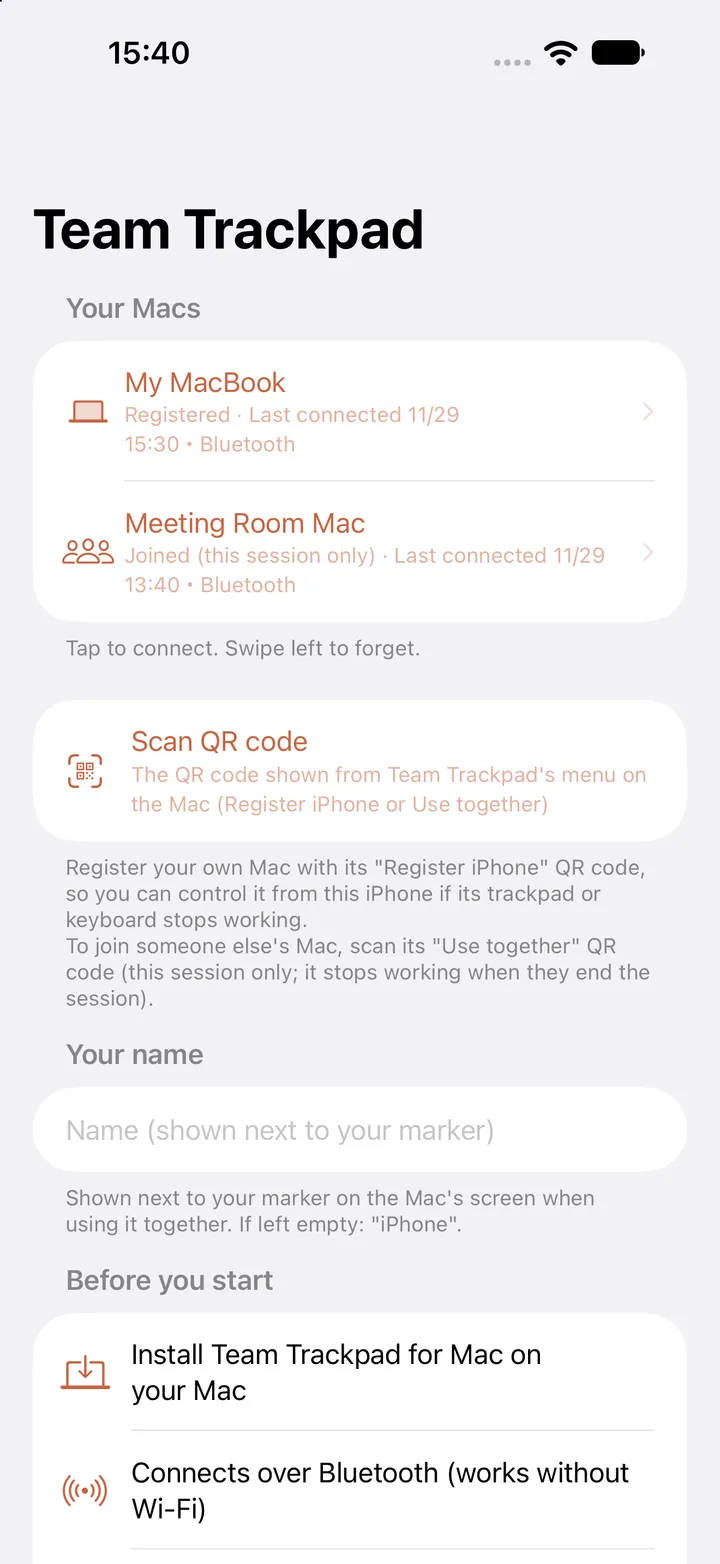
On the iPhone, tap Scan QR code and scan the QR code on the Mac with the camera.
Check the number, then click “Register”
The same 6-digit number appears on both the iPhone and the Mac. If they match, click Register on the Mac. If they differ, or you don't recognize the request, click Don't Register. The key for that iPhone is handed over only when you click Register.
Done. Next time, just open it
The trackpad screen opens. From now on, tap the Mac in “Your Macs” in the iPhone app and it connects right away.

Use one Mac together
The Mac's owner shows a QR code, and everyone else scans it with their iPhone. People joining don't need to install anything on the Mac.
The Mac's owner shows the join QR code
Click the people icon in the Mac's menu bar and choose Use Together (show join QR code)….
Everyone else scans it
People joining open Team Trackpad on their iPhone, tap Scan QR code, and scan this QR code. They're in right away (there's nothing to click on the Mac). Up to 8 people.
Colored markers appear, and everyone can use it
Everyone gets their own colored marker and name on the Mac's screen, and moves only their own marker. The real pointer goes to whoever clicks, drags or types. When the person in control has paused for 1 second, someone else can take over (never while a button is held).
Ending it
The Mac's owner can remove people one by one from People in the menu. To remove everyone, choose End Use Together (remove everyone who joined) and click End. The join QR code stops working and everyone who joined is disconnected. Quitting the receiver ends it too. iPhones you registered yourself keep working.
Gestures
They follow your Mac's Trackpad settings.
| Gesture | What happens on the Mac |
|---|---|
| Slide one finger | The pointer moves |
| Tap with one finger | Click (tap twice for a double-click) |
| Tap, then rest your finger a moment before moving | Drag |
| Slide two fingers | Scroll (with a little momentum after you lift) |
| Tap with two fingers | Right-click |
| Pinch, spread or twist with two fingers | Zoom and rotate |
| Slide three fingers left or right | Switch desktops |
| Slide three fingers up | Mission Control |
Keyboard: send text to the Mac from the iPhone keyboard, or from a Bluetooth keyboard connected to your iPhone. Clicks and drags give a haptic response under your finger.

Tips & notes
- Set it up before it breaksInstalling the Mac app and granting permission can only be done while the trackpad and keyboard still work. Do it first.
- Not right after a restartThe Mac receiver runs after you log in. It can't be used at the login screen right after a restart, including the FileVault unlock screen.
- Turn on “Open at Login”Turn on Open at Login (a backup if input suddenly stops working) in the Mac's menu, and you can use your iPhone as soon as you log in.
- One pointerA Mac has one pointer, so even in a group only one person can click at a time.
- Scroll direction and speedChange them with Reverse Scroll Direction and Scroll Speed in the Mac's menu.
- Why the Mac app is needediOS does not allow an iPhone app to act as a standard Bluetooth mouse or keyboard for a Mac, so the Mac receiver is required.